Step 1: Make the accounts
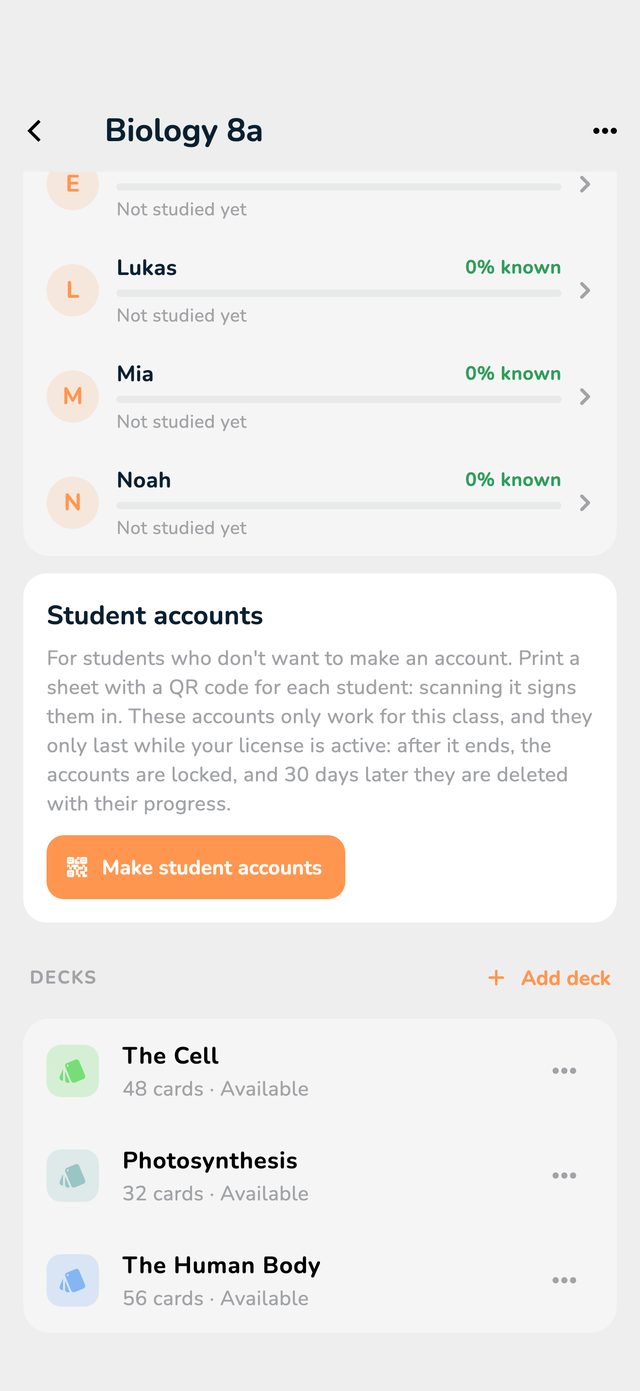
- Open the class and scroll to the Student accounts section.
- Tap Make student accounts.
- Write one nickname per line, up to 60 at a time.
- Tap Make … accounts.
Not every student has an email address or should make their own account. For them, you make student accounts yourself: a nickname per student, and you print a sheet with a QR code per person. A student who scans their code is signed in, with no email and no password.
How to read the pictures: the red frame shows what to tap. Its number is the number of the step.
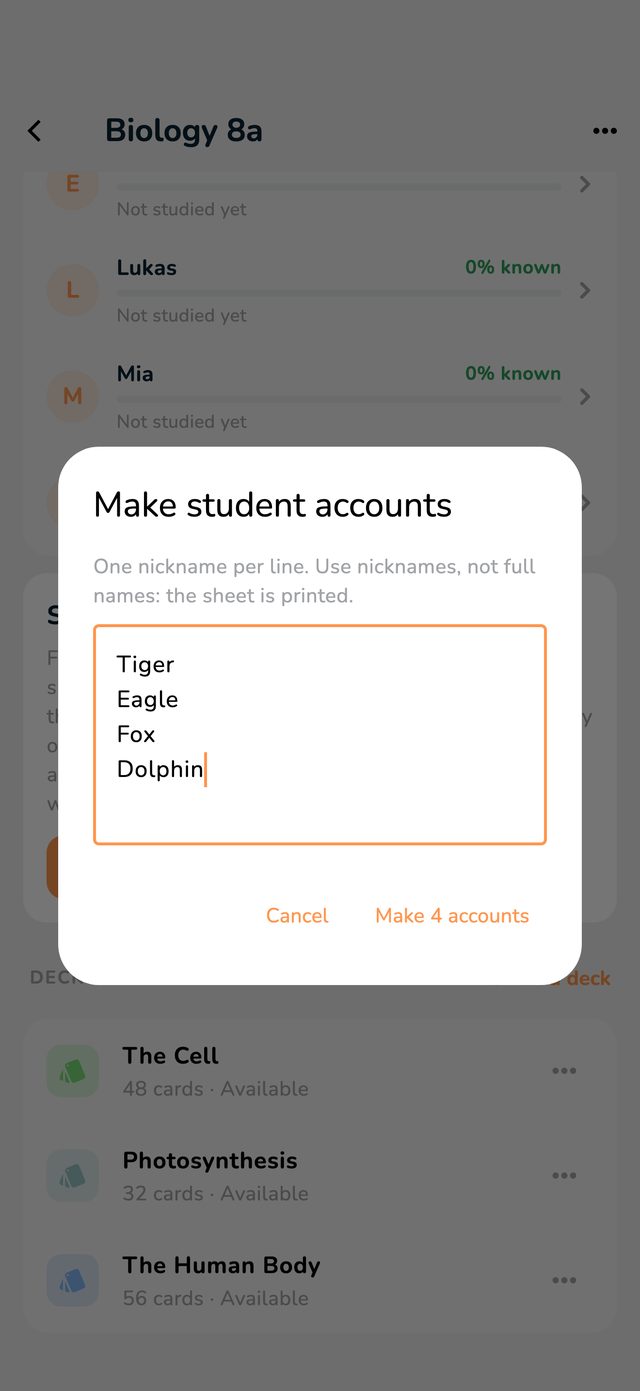
Use nicknames rather than full names: the sheet gets printed. You can still give your students real names that only you see (see See your students' progress).
Right after, Sheet for printing opens: an A4 page with a card per student, with the class's name, the nickname and the QR code. At the bottom you print the sheet or share it as a PDF.
Print it straight away: the codes can't be shown again later.
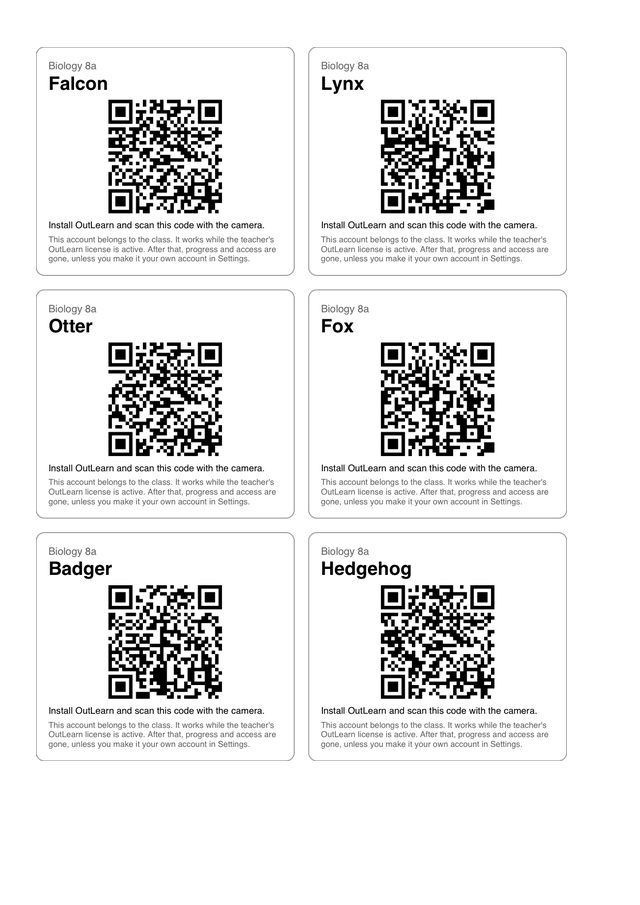
Cut the cards out and give each student theirs. The card is their key: it shouldn't be left lying around.
A student account only has Home with the class's decks, and Settings. Their own decks, search and Pro features aren't there.
Under Student accounts, every student has a row. Tap the QR icon (New code): you get a new sheet just for this student, and the old card stops working. Their progress stays.
The bin (Remove) deletes a student account and its progress.
Student accounts only work for your class and only while your license is active. After that they're locked, and 30 days later they're deleted with their progress.
A student who wants to keep their progress makes the account their own before that: in the app under Settings, with Make this my own account, an email address and a password. The account then belongs to them and no longer ends with your license.