← All guides for teachers

See your students' progress

4 min · Last checked: November 2026

You see how far each student has got in the class's decks, how regularly they learn and for how long. You only see what happens in your class's decks, nothing of what a student learns elsewhere in OutLearn.

How to read the pictures: the red frame shows what to tap. Its number is the number of the step.

The whole class at a glance

Open the class. Under Students, everyone has a row:

  • … % known, with a bar: the share of the cards they already know.
  • 🔥 their streak: how many days in a row they have learned.
  • how long they learned this week, and when they last did.
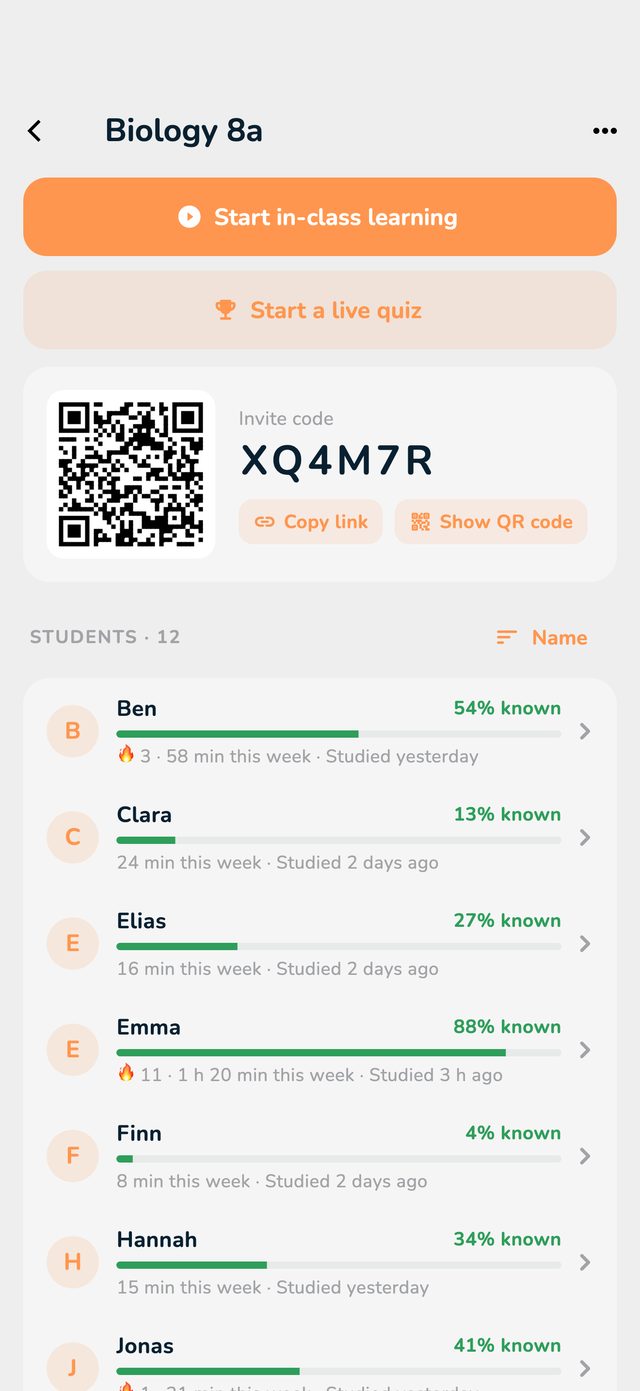
The list of students with progress, streak and study time

At the top right above the list you sort by Name, Progress, Streak or Time this week. Sorted by progress, you see straight away who needs help.

One student in detail

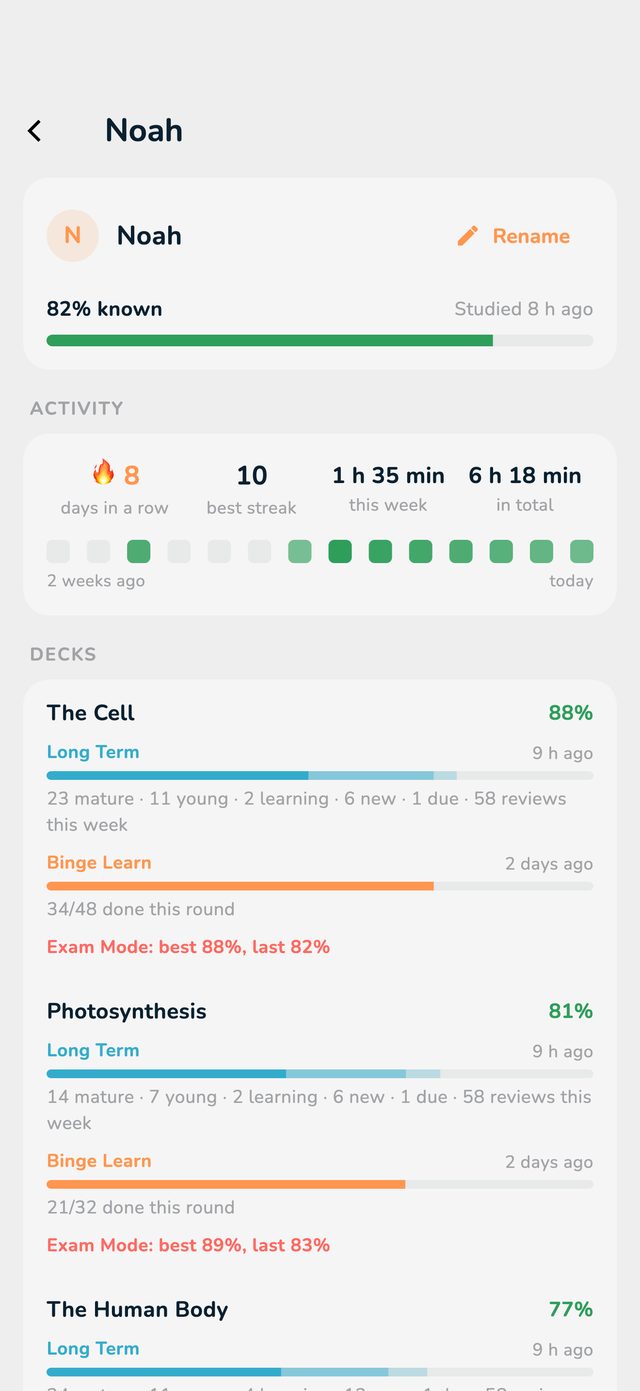
Tap a student. Their page shows:

  • Activity: days in a row, best streak, study time this week and in total, and the last two weeks day by day.
  • For each deck: how many cards in Long Term are mature, young, learning, new or due, how far they are in Binge Learn, and their results in Exam Mode.
A student's page with the activity and the progress per deck

Give a name only you see

Students join with their account's name, often a nickname. On their page, tap Rename and type their real name. Only you see this name, never the student or the class. Leave the field empty and the original name is back.

Past sessions

At the very bottom of the class's page are your last five sessions (in-class learning and quizzes). Tap one to see its overview or results again.