← All guides

Organise your decks and study a whole folder

5 min · Last checked: November 2026

As you collect decks, you want to tidy them. And before an exam you may want to study everything in a folder in one go. Folders and decks covers the basics. This guide covers the rest.

How to read the pictures: the red frame shows what to tap, and its number is the number of the step.

Tools for a deck

Open a folder and tap the three dots (⋮) next to a deck:

  • Edit, Move and Delete.
  • Duplicate: a copy next to the original. Good for trying something out.
  • Merge: pick a second deck. You get a new deck with the cards of both. The two originals stay as they are.
  • Split: cut a deck in two: Split at half, Split at index.. (you say which card is the last one in the first deck) or Split opposite cards.

Duplicate, Merge and Split need an internet connection.
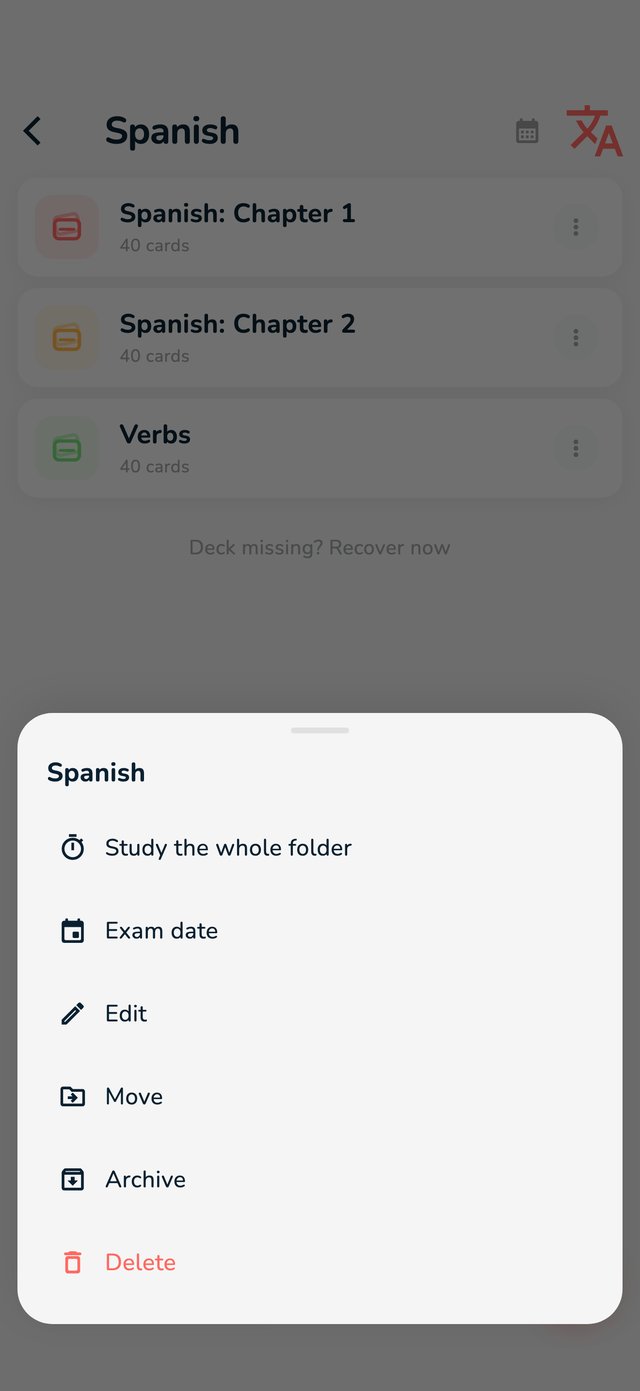
Tools for a folder

The three dots next to a folder offer:

  • Study the whole folder: see below.
  • Exam date: every Long Term card in the folder comes back before your exam, a little more often as the day gets closer. See Long Term settings.
  • Edit: name, colour and icon. A colour of your own, or a letter or an emoji as the icon, is part of Pro. The setting Match folders & decks to theme in Settings can hide your colour: switch it off to see it.
  • Move: put it inside another folder. With Pro you can also drag a folder onto another.
  • Archive: put it away without deleting it. Find it under Archives at the bottom of the Folders screen, where Un-Archive brings it back.
The menu of a folder: Study the whole folder, Edit, Move, Archive and Delete
The menu of a folder.

Study a whole folder

One Long Term session for everything in a folder, including the folders inside it. Each deck keeps its own limits, and every answer is saved in the right deck.

  1. Open the Folders tab.
  2. Tap the three dots next to the folder and choose Study the whole folder.
  3. Study as usual. You can undo, change the settings and open Weak cards.

On Home, the list Long Term Cards Due Now works the same way: tap a folder to study all of it, tap a deck to study that deck, and touch and hold to open the folder or the Long Term settings.

Undo and recover

Deleting is never final at once. Open Settings, find Recently Deleted and recover decks, folders and cards for 30 days. A card can only come back if its deck still exists.