The tool bar
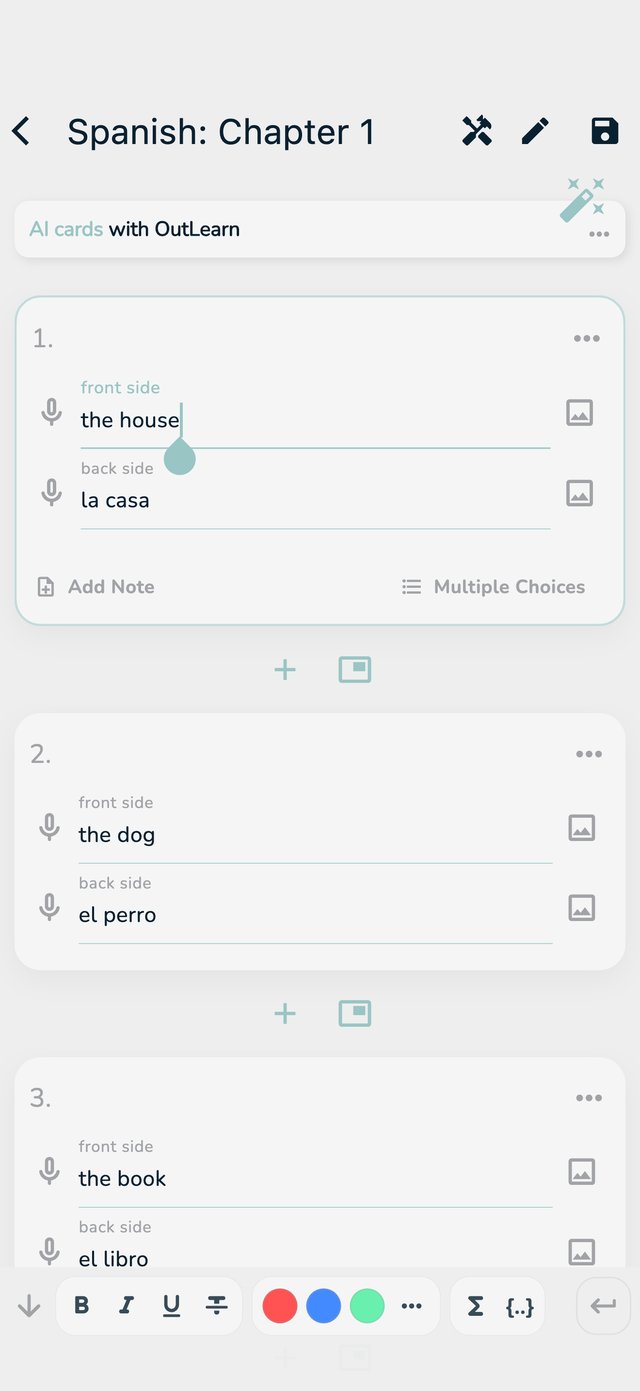
Open your deck, tap the pencil and tap into a card. The bar appears above the keyboard. On a phone, swipe it sideways to see everything on it.
The editor has a bar of tools above the keyboard. Formulas, text styles and colours are part of Pro. The special characters are free. See Pro: what it includes.
How to read the pictures: the red frame shows what to tap, and its number is the number of the step.
Open your deck, tap the pencil and tap into a card. The bar appears above the keyboard. On a phone, swipe it sideways to see everything on it.
OutLearn understands LaTeX, the language scientists use for formulas. The helper lets you try a formula and see how it looks, before you use it.
x^2. The preview shows the result at once.$x^2$. In the editor you see the formula as you typed it. When you study, it is drawn properly.Importing a text file with dollar signs? The app asks if you want them treated as formulas. Say No if your text contains prices.
On a computer, Ctrl+B, Ctrl+I and Ctrl+U do the same, and Cmd instead of Ctrl on a Mac.
Each deck has two languages, one for each side. Set them in the editor under Tools, then Languages: Front side and Back side. The bar then shows the special letters of those languages, for example é, ñ or ü. Tap one to type it.
The same two languages tell the app which voice to use when it reads your cards aloud: see Listen and speak.
Formulas, styles and colours show a small lock. A card that has a formula still shows its text, with a note that you need Pro to see the formula. Everything else works as before.