← All guides

Card types: multiple choice, fill in the blank, notes and opposite cards

5 min · Last checked: November 2026

A card does not have to be a plain question and answer. You can offer several answers to choose from, hide a word inside a sentence, add a note, or turn a card around. All of this is free.

You change a card in the editor: open your deck and tap the pencil at the top right. New to cards? Start with Start here.

How to read the pictures: the red frame shows what to tap, and its number is the number of the step.

Multiple choice

The back of the card becomes a list of answers. You pick the right one when you study.

  1. In the editor, tap the card you want to change.
  2. Under the card, tap Multiple Choices.
  3. Type the answers. Tap the tick next to every answer that is correct. More than one can be correct.
  4. To go back to a normal card, tap Go Back to Normal.
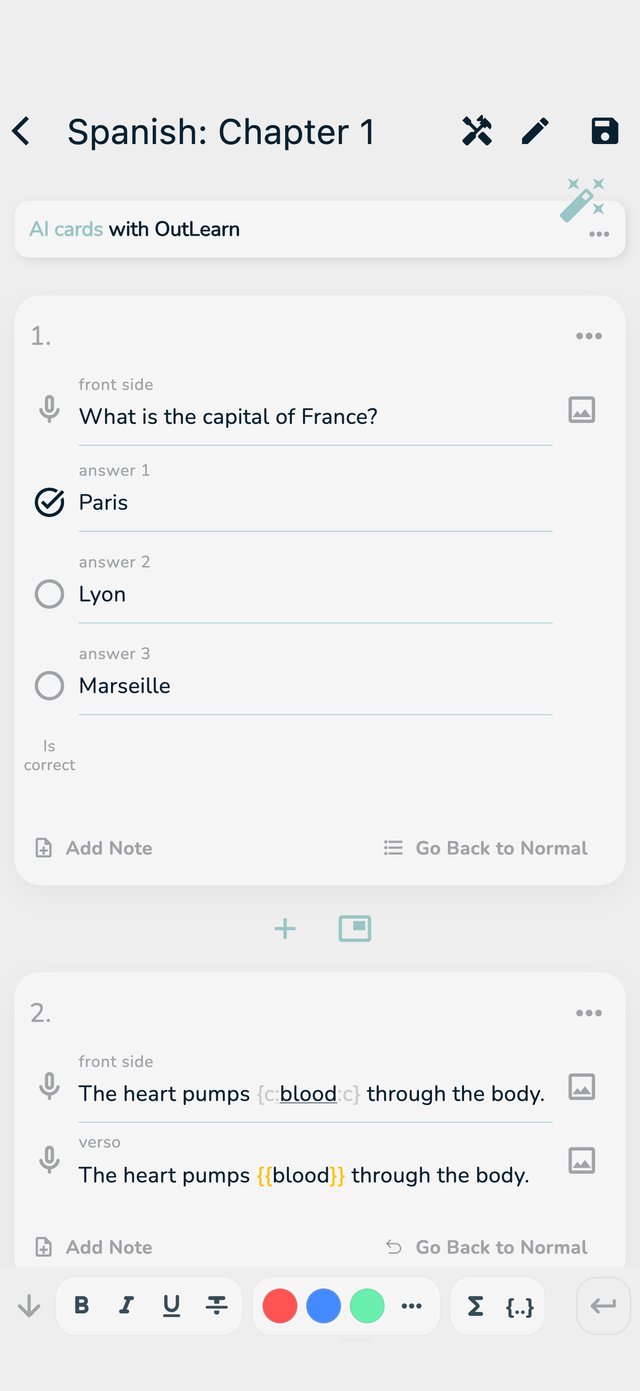
The editor with a normal card, a multiple choice card and a fill-in-the-blank card
A multiple choice card (1) and a card with a gap (2) in the editor.

A shortcut: write the answers on the back separated by semicolons, for example Paris; London; Berlin, and end with ;;. The app turns them into answers and shows Undo in case you did not want that.

Fill in the blank

Hide a word inside a sentence. When you study, the gap is empty on the front and filled in on the back.

  1. Write your sentence on the front of a card.
  2. Select the word you want to hide.
  3. Tap the {..} button above the keyboard. The word is marked as a gap.

Cards from Anki that have gaps work the same way: every gap becomes its own card.

Add a note

A note appears under the answer: a hint, an example, a memory trick.

  1. Tap the card in the editor.
  2. Tap Add Note and write your note.
  3. To take it away, tap Remove Note.

Turn a card around

Tap the three dots on a card to see the card menu:

  • Preview the card: see it as it looks when you study.
  • Swap front and back: exchange the two sides.
  • Create the opposite card: a second card with front and back swapped, so you study it both ways.
  • Flag the card, Archive the card and Delete the card: see Study faster.

For a whole deck, open Tools (the wrench at the top of the editor), then Cards, and tap Reverse cards. This cannot be undone. To separate them again later, use Split and then Split opposite cards from the deck menu.

Careful with duplicates

If two cards have the same front or the same back, the editor warns you, so you do not learn the same thing twice.