← All guides

Study faster: swipe, undo, shortcuts and a controller

5 min · Last checked: November 2026

Once you study every day, small things add up. These tools make a session quicker. All except the controller are free.

How to read the pictures: the red frame shows what to tap, and its number is the number of the step.

Session settings

In Binge Learn and Long Term, tap the gear at the bottom of the study screen. What you find depends on the mode:

  • Only Flagged Cards and Shuffle Cards (Binge Learn).
  • New Cards Per Day (Long Term): changing it restarts the session.
  • Learn Front: study the back side and recall the front instead.
  • Show Multiple Choice Answers: turn the answer choices on or off.
  • Show Past Answer (Long Term).

Grade by swiping

With Swipe Cards on, you show the answer and swipe the card instead of pressing a button: left for again, up for easy, right for correct, down for hard. In Binge Learn there are only two answers, so left is Again and right is Good. You can change each direction in the settings, or switch it off.

  1. Tap the gear, then switch Swipe Cards on or off.
  2. Or switch on Swipe Area: a pad appears under the card. Tap it to flip the card, swipe on it to grade. Hold it to move it somewhere else.

Take an answer back

Tapped the wrong button? Tap Undo in the bottom row. In Long Term you can go back as many answers as you like.

Flag and archive

While studying, tap the … on a card and choose Flag the card to mark it, or Archive the card to put it away. With Customize the card buttons you can pin these buttons on the card. A flagged card can be studied alone with Only Flagged Cards. An archived card is out of your sessions until you bring it back from the deck.

Show the answer by itself

Switch on Show Answer Automatically and the card turns over by itself after a while: 60 seconds is the standard, and you can choose between 20 and 300 under Seconds Before It Shows. It is meant to bring you back to the card, not to hurry you.

The keyboard

With a keyboard (on the web, a Mac, or an iPad):

  • Space shows the answer, or turns the card.
  • 1 is Again, 2 is Hard, 3 is Correct and 4 is Easy. In Binge Learn, 1 is Again and 3 is Good.
  • F flags the card.

A game controller or a remote (Pro)

Study without touching the screen. You can use a game controller or a Bluetooth remote.

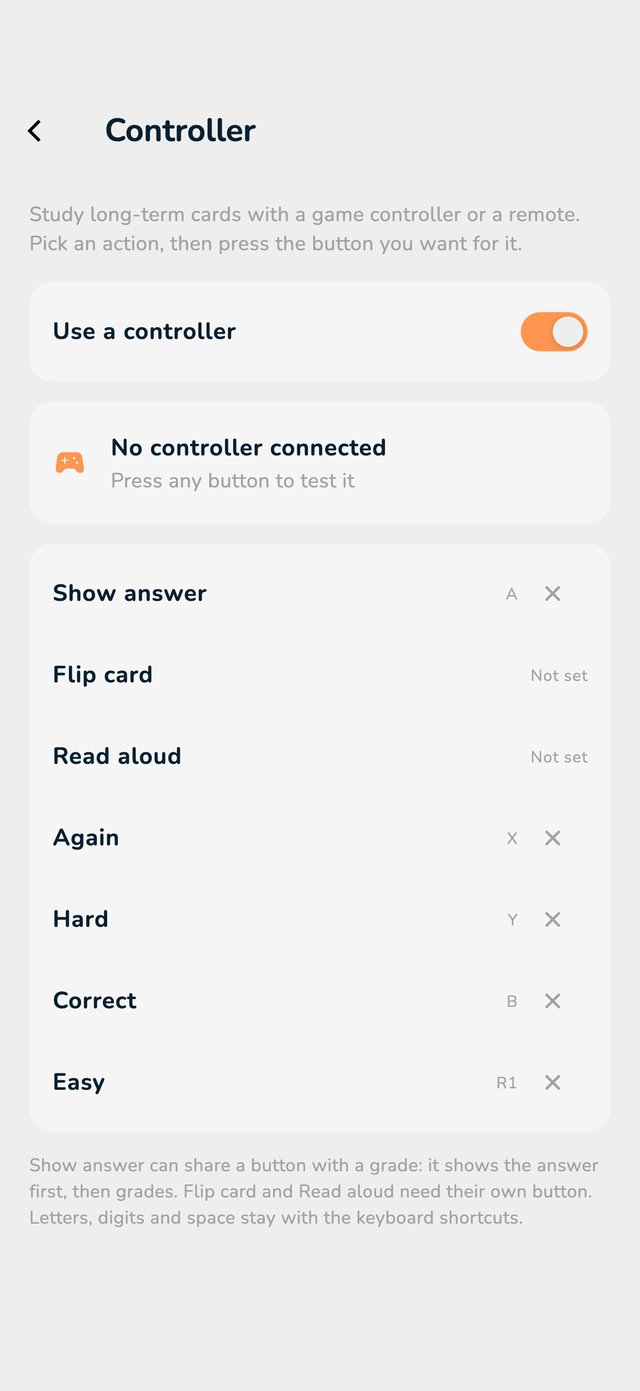
  1. Open Settings and scroll to the section App. Tap Controller.
  2. Switch on Use a controller.
  3. Tap an action (for example Show answer) and then press the button you want for it. Do the same for Again, Hard, Correct and Easy.
  4. Press any button on the test area to see that it works.
The Controller page with the list of actions and their buttons
The Controller page.

The controller works for Long Term. Pro is needed, except on a device that already used it.