← All guides

Print your cards

4 min · Last checked: October 2026

You can print any deck, or save it as a PDF. You choose how it looks. One layout is made for cards you cut out, with the front on one side and the back on the other.

How to read the pictures: the red frame shows what to tap, and its number is the number of the step.

  1. Open the deck you want to print. (Your decks are in the Folders tab: Folders and decks.)
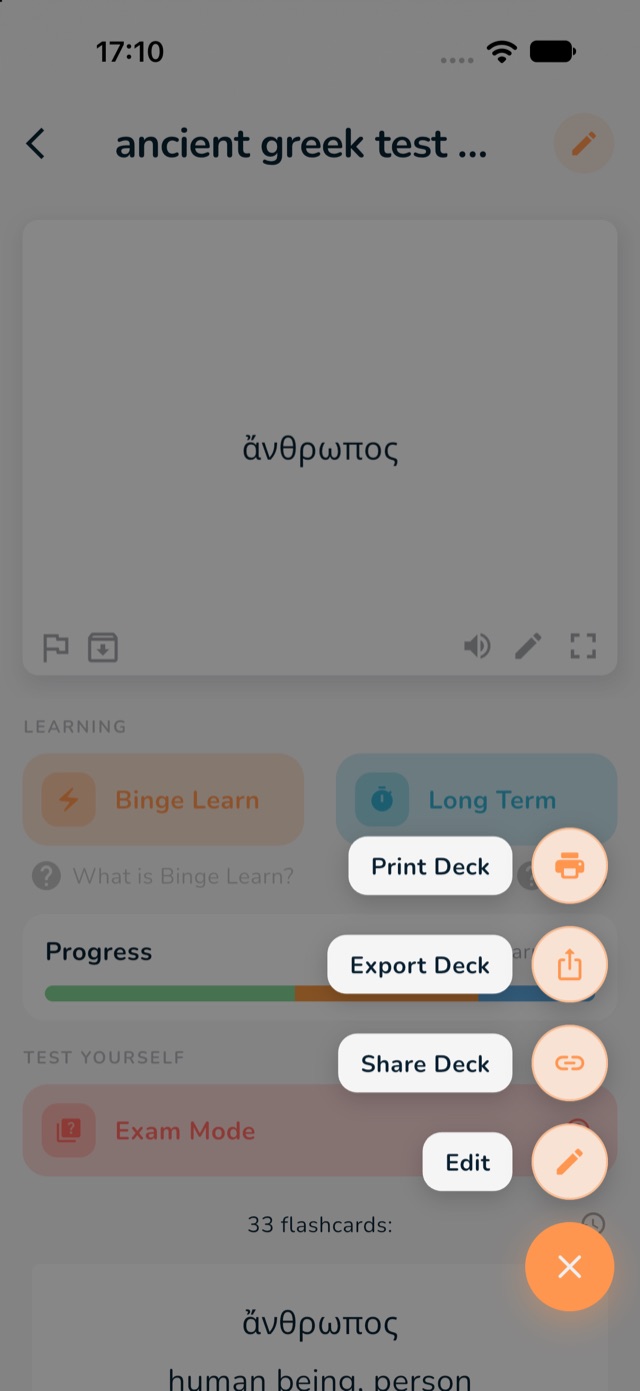
  2. Tap the orange ... button at the bottom right.
  3. Tap Print Deck. The window Select Layout opens.
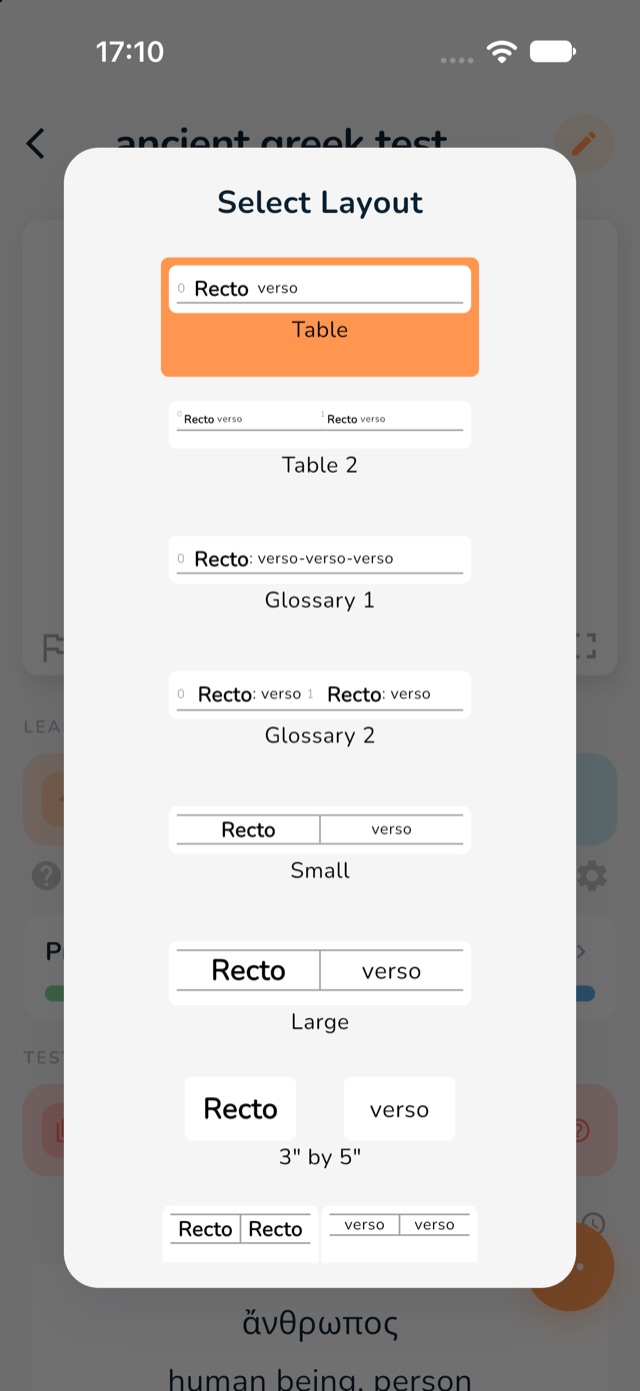
  4. Tap the layout you like. The picture of each layout shows what the page will look like.
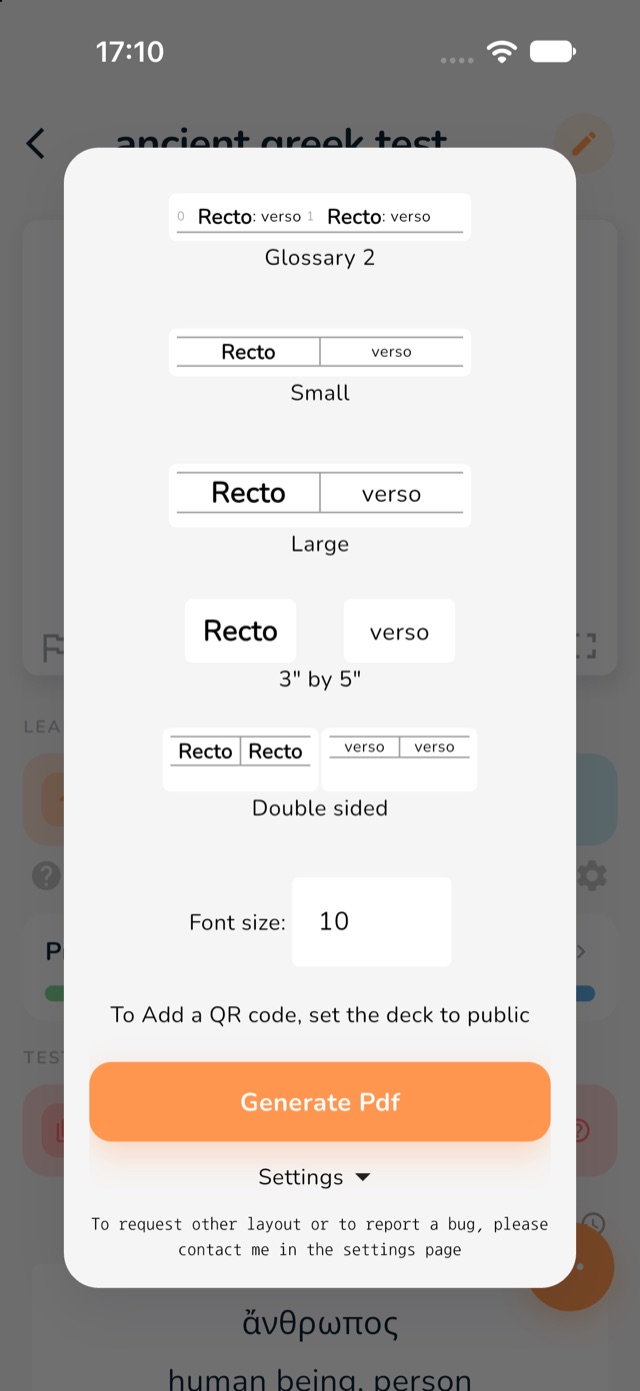
  5. If you like, set the Font size.
  6. Tap Generate Pdf. You see the pages. From there you can print them, or share or save the PDF.
The deck menu with Print Deck marked in red
2: the orange ... button. 3: Print Deck.
The Select Layout window with the list of layouts
4: the layouts. Scroll down to see all of them.
The bottom of the layout window, with the font size and the Generate Pdf button marked in red
5: the font size. 6: Generate Pdf.

Which layout?

  • Table is a simple list, one card per line. It is free.
  • Table 2 and the Glossary layouts fit more cards on a page.
  • Small and Large make two columns, with small or large writing.
  • 3" by 5" makes separate front and back cards, the size of index cards.
  • Double sided is for cards you cut out (see below).

All the layouts except Table need Pro. You can still try them and see the pages. See what Pro includes.

Double-sided cards you cut out

The Double sided layout puts the fronts of your cards on one page and the backs on the next page, in a mirrored order, so each back lands exactly behind its front.

  1. Choose Double sided and tap Generate Pdf.
  2. Print the PDF on both sides of the paper. In your printer's window, choose double-sided and flip on the long edge.
  3. Cut along the lines. Each piece has a front on one side and its back on the other.
The layout window with Double sided marked in red
1: Double sided.

To put a QR code on the page that opens the deck, make the deck public first. The window tells you this at the bottom. The Public Deck switch is in the window when you make a deck.