← All guides

Your account, sync and offline

4 min · Last checked: October 2026

Your account keeps your decks, your progress and Pro safe, and puts them on every device where you sign in. If you lose your phone, you sign in on a new one and everything is back.

How to read the pictures: the red frame shows what to tap, and its number is the number of the step.

Sign in on another device

  1. Install OutLearn on the other device. (Your decks are described in Folders and decks.) It is free on iPhone, iPad, Mac, Android and on the web at webapp.outlearnapp.com.
  2. Sign in with the same way you used before: your email and password, or Google, or Apple.
  3. Your decks appear after a moment.

Not sure which way you used? Try the same email you gave when you made your account. If you are still stuck, email .
Change your email or password

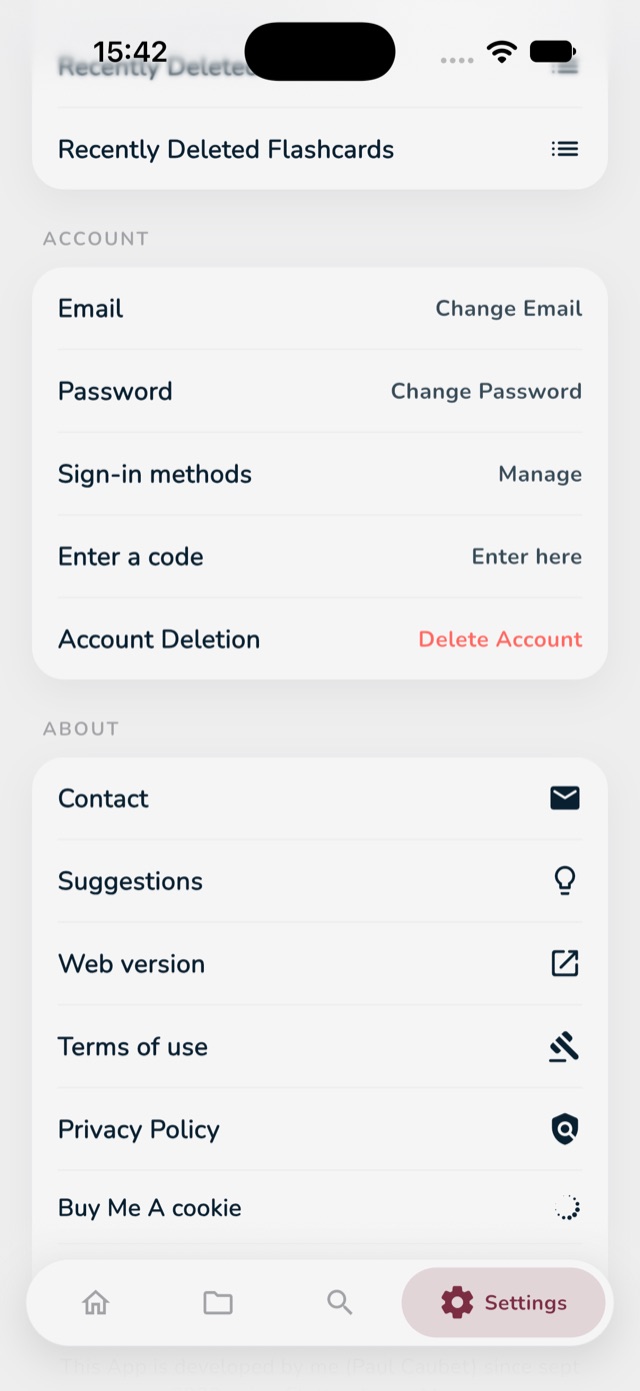
  1. Tap the gear icon at the bottom right (Settings) and scroll down to Account.
  2. Tap Change Email or Change Password.
  3. Follow the questions on the screen.
The Account part of Settings with Change Email, Change Password, Manage sign-in methods marked in red
2: Change Email. 3: Change Password. Below: Sign-in methods.

Add another way to sign in

If you signed up with Google, you can also add a password, or Apple, to the same account. You keep your decks and your Pro.

  1. In Settings, under Account, tap Manage next to Sign-in methods.
  2. Choose what you want to add.

No internet? No problem.

OutLearn works without internet. What you study stays on your device. When the internet is back, OutLearn sends your progress to your account by itself.

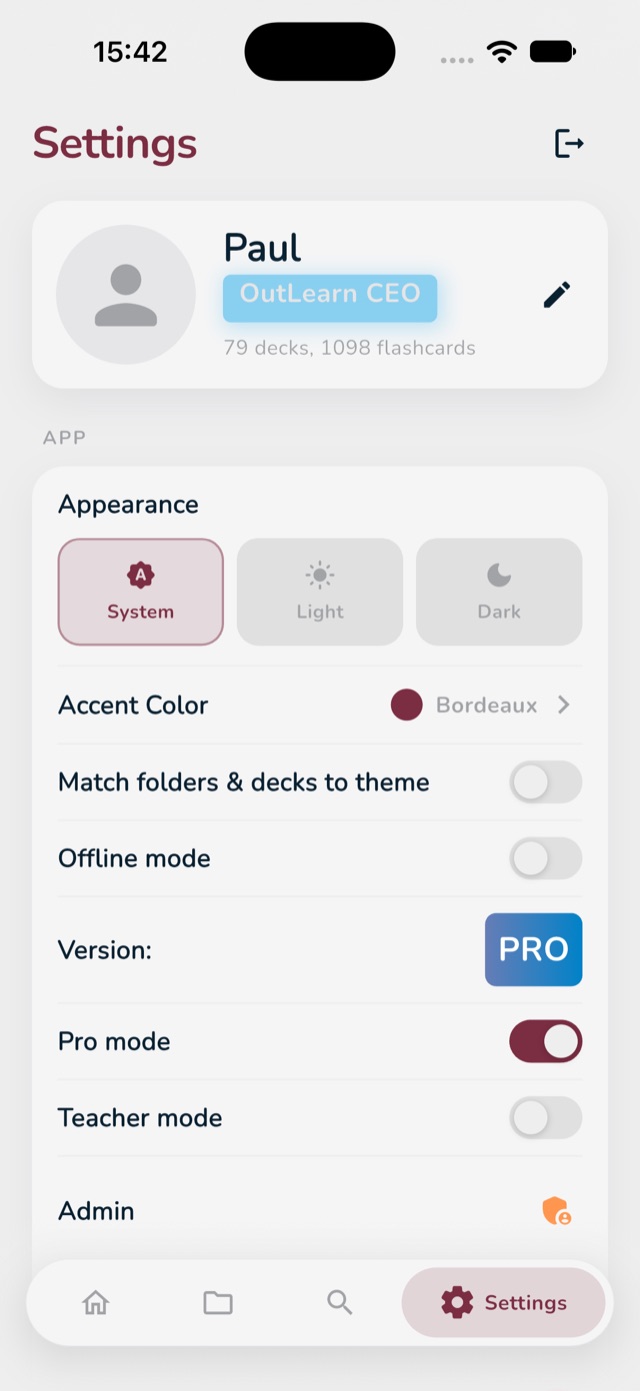
You can also turn on Offline mode yourself, for example on a plane. Turn it off again later to sync.

  1. Open Settings.
  2. Tap the switch next to Offline mode.
The top of Settings, with the log out button and the Offline mode switch marked in red
2: Offline mode. Top right: log out.

Log out, or delete your account

  • Log out: tap the arrow icon at the top right of Settings.
  • Delete your account: at the bottom of the Account part of Settings. This removes your account for good, so think twice. (Deleting one deck only? That is easier, and you can get it back: Get back something you deleted.)