You can turn your own notes into flashcards in a few minutes. OutLearn gives you a ready-made instruction (a "prompt"). You paste it into an AI chat, such as ChatGPT, Claude or Gemini, together with your notes. Then you paste the answer back into OutLearn.
It works with any free AI chat. You do not need Pro.
How to read the pictures: the red frame shows what to tap, and its number is the number of the step.
Part 1: Get the instruction
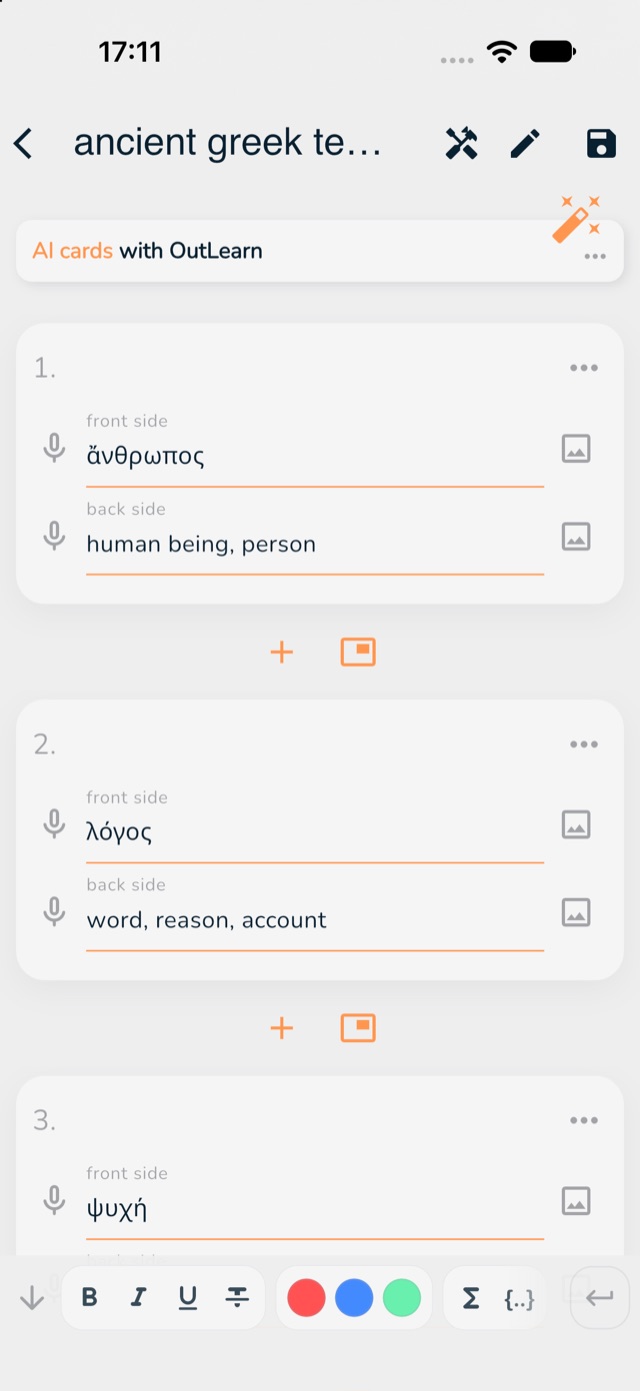
Open your deck and tap the pencil at the top right. (No deck yet? See Start here.)
At the top, tap AI cards with OutLearn. A window called Generate opens.
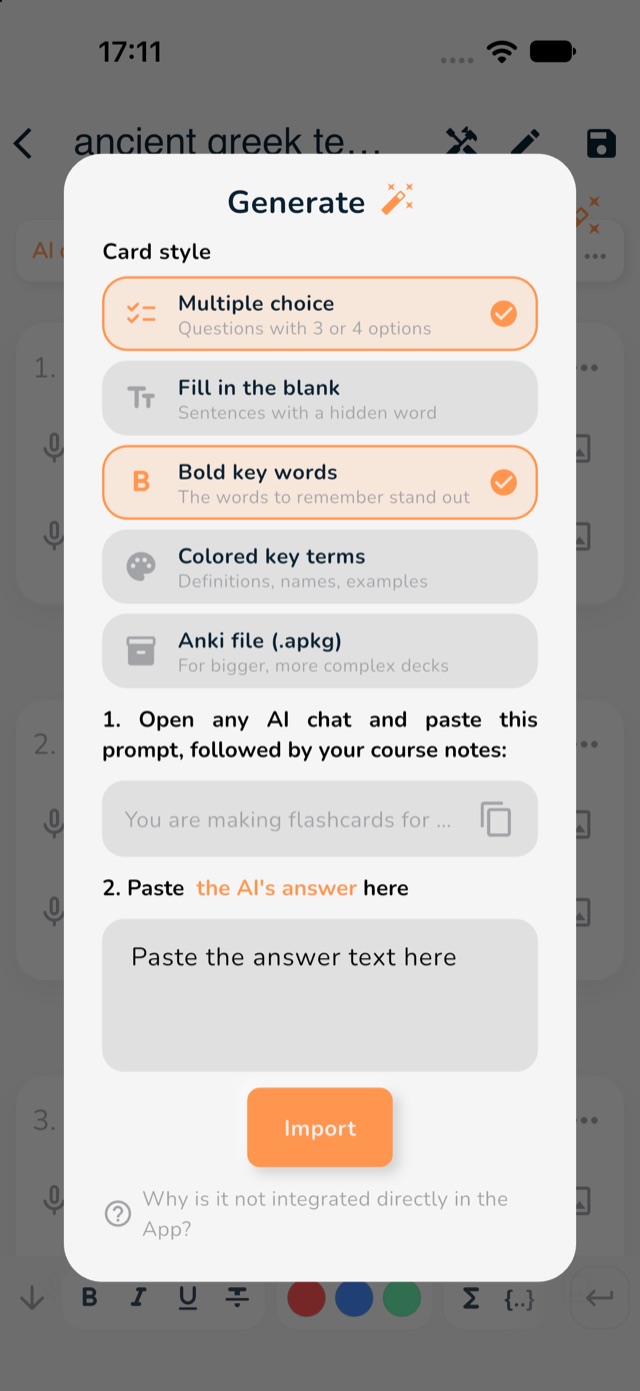
Under Card style, tap the kinds of cards you want. The ones with an orange tick are on. For example Multiple choice makes questions with 3 or 4 answers, Fill in the blank hides a word in a sentence.
Tap the copy icon next to the grey box that says "You are making flashcards for ...". The instruction is now copied.
2: AI cards with OutLearn.
3: choose your card styles. 4: the copy button.
Part 2: Ask the AI
Open an AI chat in your browser or app.
Paste the instruction you copied (hold your finger in the message box and choose Paste).
Right after it, paste your notes, for example a page of your course.
Send it. The AI answers with a list of cards.
Copy the whole answer.
Part 3: Paste the answer into OutLearn
Go back to OutLearn, to the Generate window.
Tap the box that says "Paste the answer text here" and paste the answer.
Tap Import.
OutLearn shows you the cards first, so you can check them before they are added.
1: paste the answer here. 2: Import.
Check the cards. An AI can make mistakes, so read them before you study. Then pick how to study them: The three study modes.
Bigger decks and extra styles
Bold key words and Colored key terms make the important words stand out (Pro).
Anki file (.apkg) is for bigger decks. Choose it only with an AI chat that can make files for you to download. Then open the file in OutLearn (see Move your decks over from Anki) (Pro).