← All guides for teachers

In-class learning: everyone learns, you follow live

5 min · Last checked: November 2026

You start a deck for the whole class. The students learn it on their phones, each at their own pace, and on your device you see live who is in, how many answers are right and who switches to another app.

How to read the pictures: the red frame shows what to tap. Its number is the number of the step.
Step 1: Start the session

  1. Open the class and tap Start in-class learning.
  2. Under Which deck?, choose the deck.
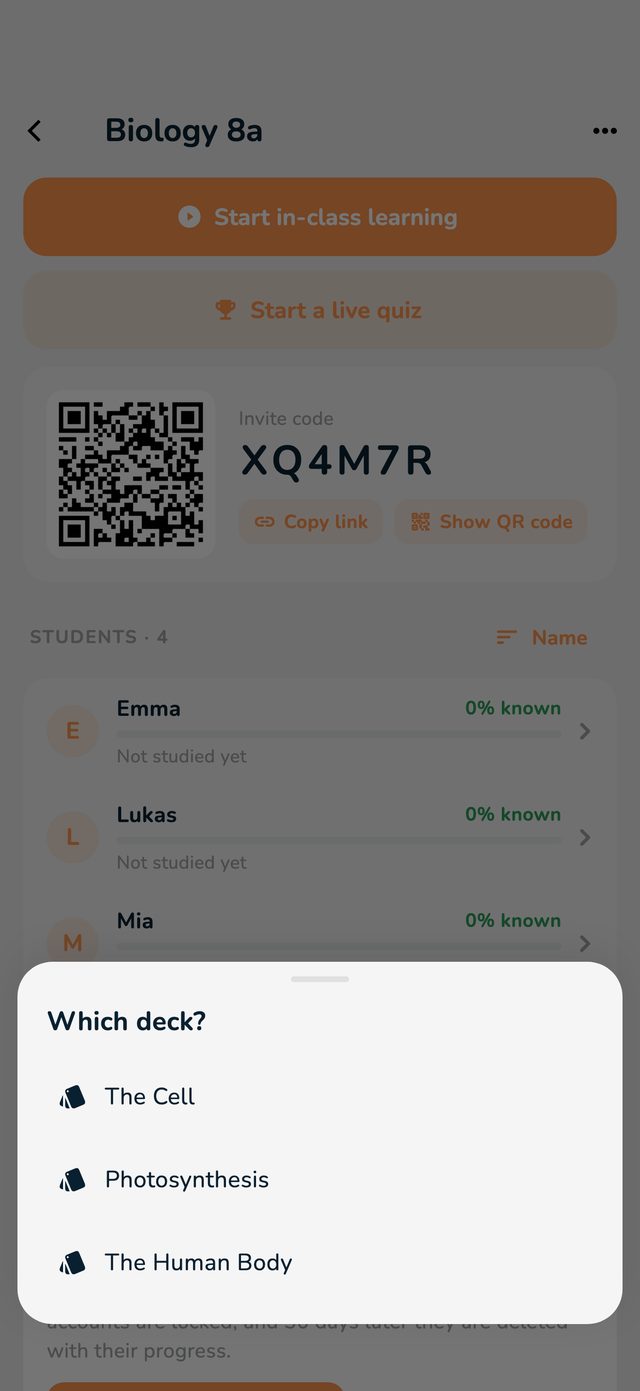
The class's page with Start in-class learning
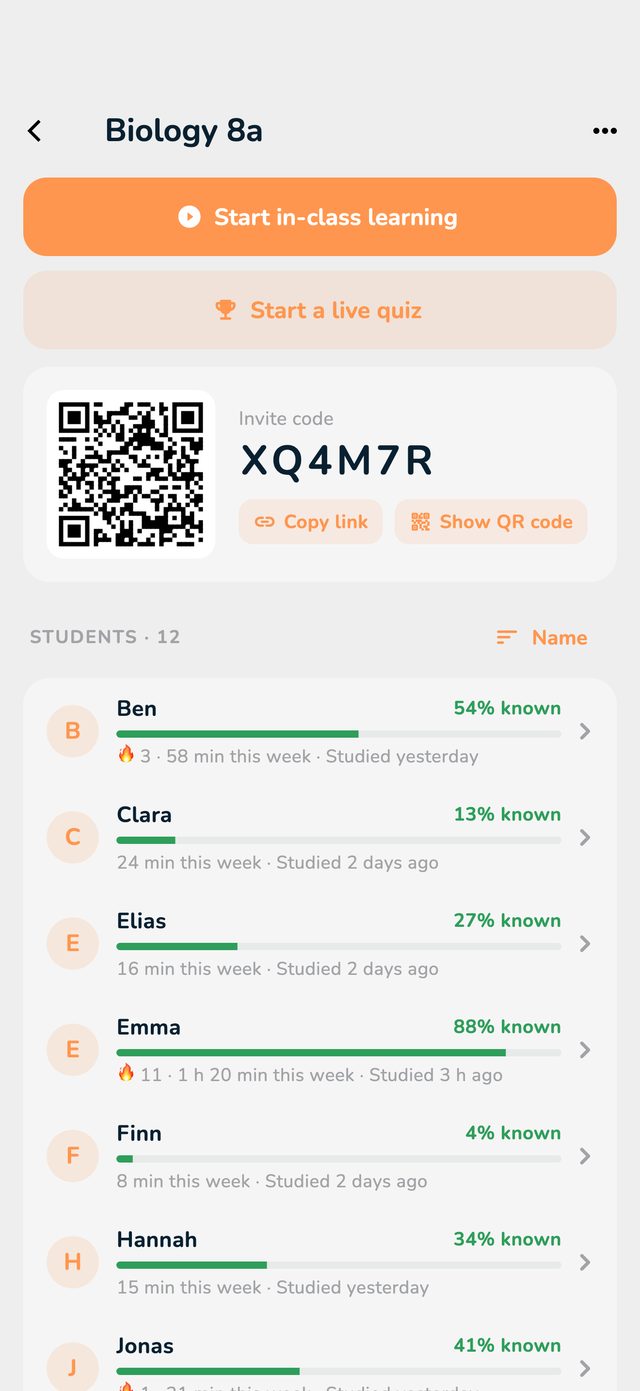
The Which deck? choice

A deck that would only be visible later is opened to everyone straight away.

What the students see

  • A notification on their phone: “Biology 8a: In-class learning”. Tapping it brings them in.
  • Without the notification (on a computer, for example): a Live banner on Home and in the class's folder.
  • They choose Binge Learn or Exam Mode and start. The app tells them that until the end of the session you see their mode, their answers and when they leave the app.

Step 2: The live overview

At the top: Joined, Studying, Away and Done, and how many answers the class has given so far. Below, every student with their status:
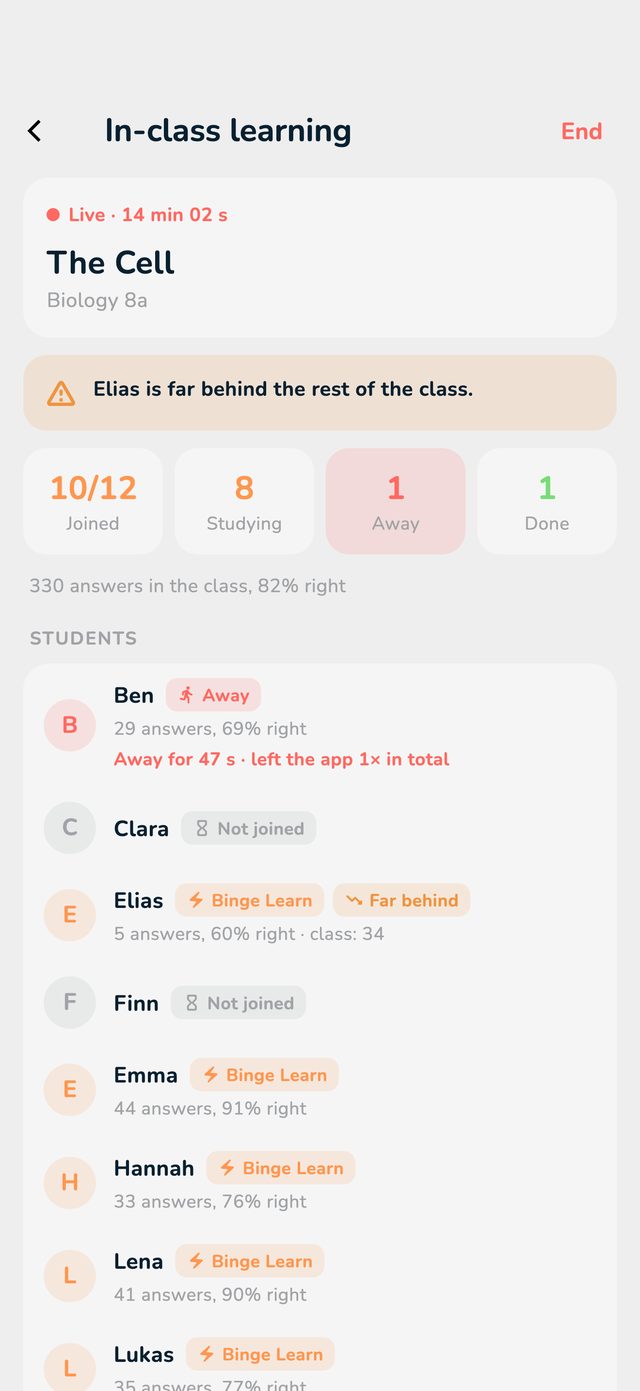
  • Binge Learn or Exam Mode: they're learning.
  • Away: they switched to another app. The row says since when and how often.
  • App closed: their app hasn't answered for over a minute.
  • Elsewhere in OutLearn: they left the session's page.
  • Done: they finished a round or an exam.
  • Far behind: they answered far less than the rest of the class. The app also names these students in a note.
The live overview with Joined, Studying, Away, Done and every student's status

Step 3: End the session

The students see “Your teacher ended this session. Well done!”. The overview stays on the class's page under Past sessions.

  1. Tap End at the top right and confirm with Yes.