← All guides for teachers

The live quiz: questions on the projector, answers on the phone

5 min · Last checked: November 2026

OutLearn turns the cards of a deck into a quiz with four answers per question. You show the questions on the projector, the students answer on their phones, and fast right answers get more points.

How to read the pictures: the red frame shows what to tap. Its number is the number of the step.
Step 1: Start the quiz

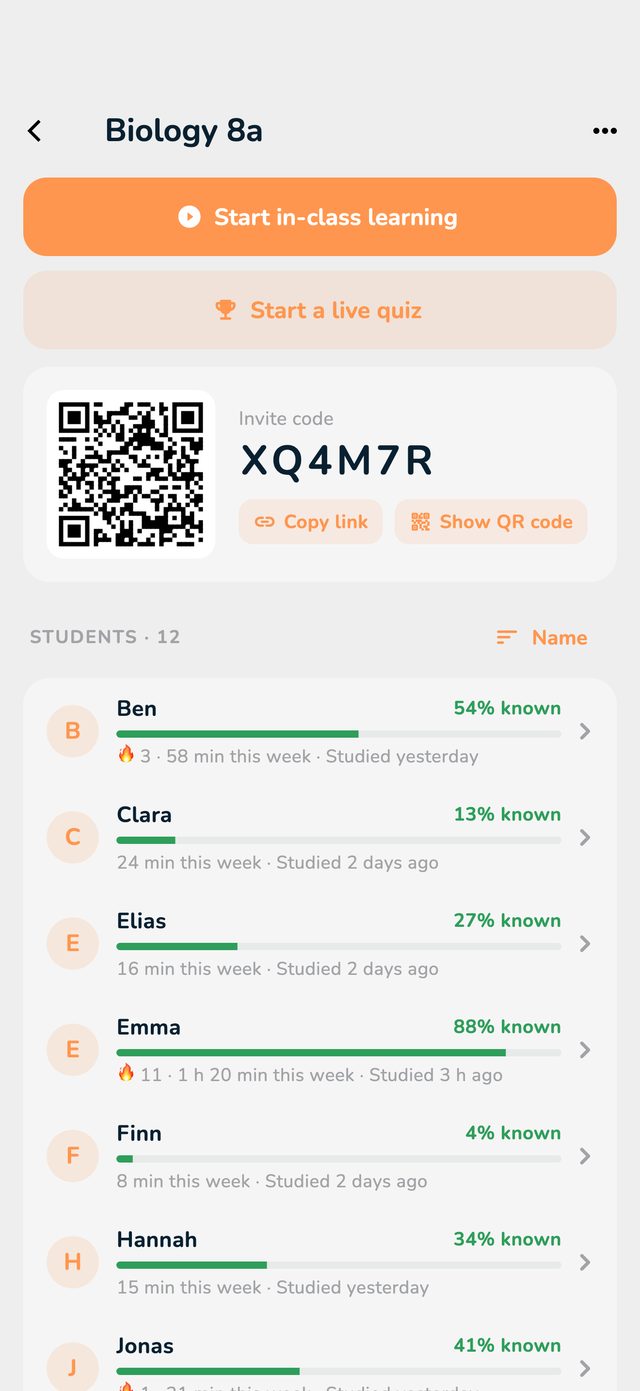
  1. Open the class and tap Start a live quiz.
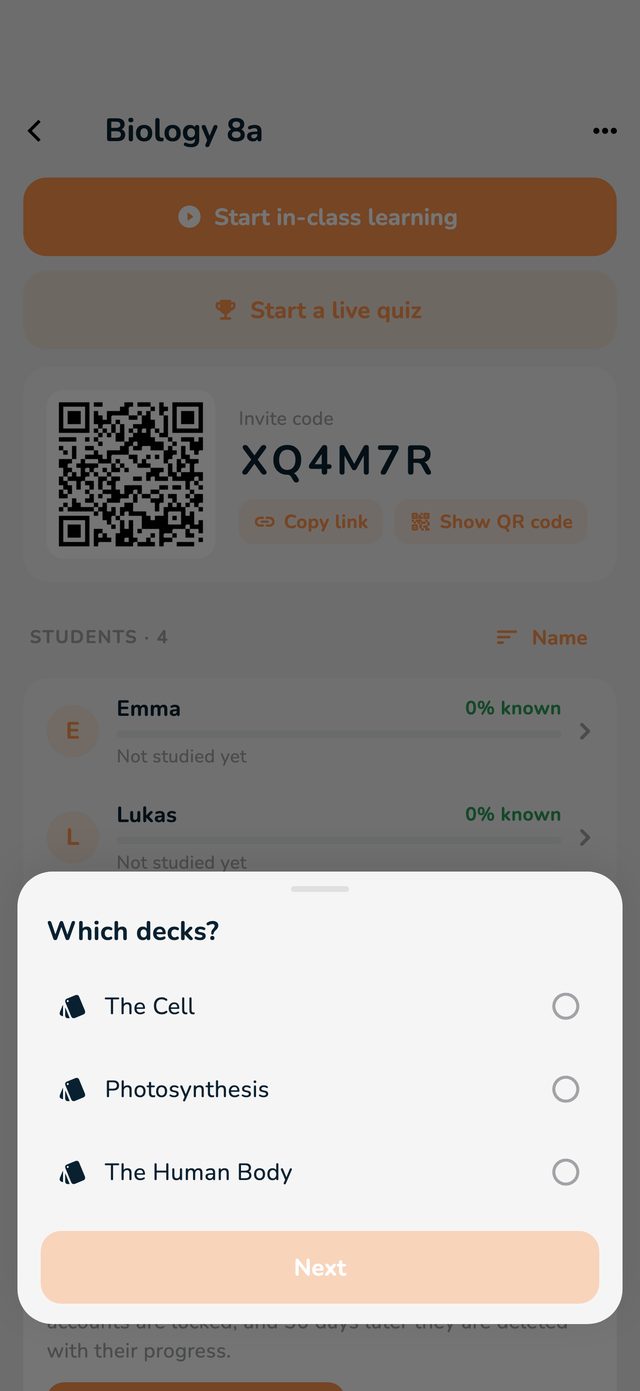
  2. If the class has several decks, choose one or more under Which decks? and tap Next.
  3. Under How many questions?, choose for example 10 questions.
The class's page with Start a live quiz
The Which decks? choice for the quiz

A deck needs at least 3 cards with different backs. Cloze and image occlusion cards don't appear in the quiz.

How the questions are made

  • The front of a card is the question, its back the right answer.
  • The three wrong answers are backs of other cards from the same deck. Cards with their own answer choices keep them.
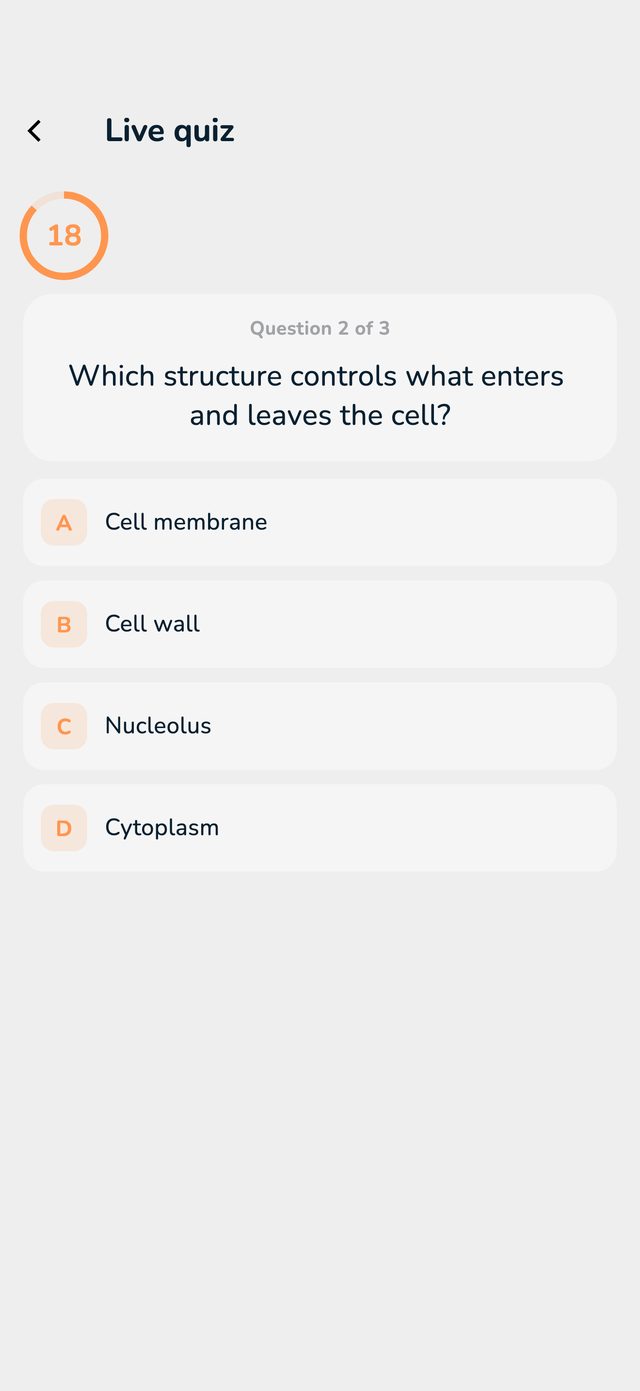
  • Each question has 20 seconds.

Step 2: Wait until everyone is in

The students get a notification and tap it. Their names appear on your device. When everyone is in, tap Start the quiz.
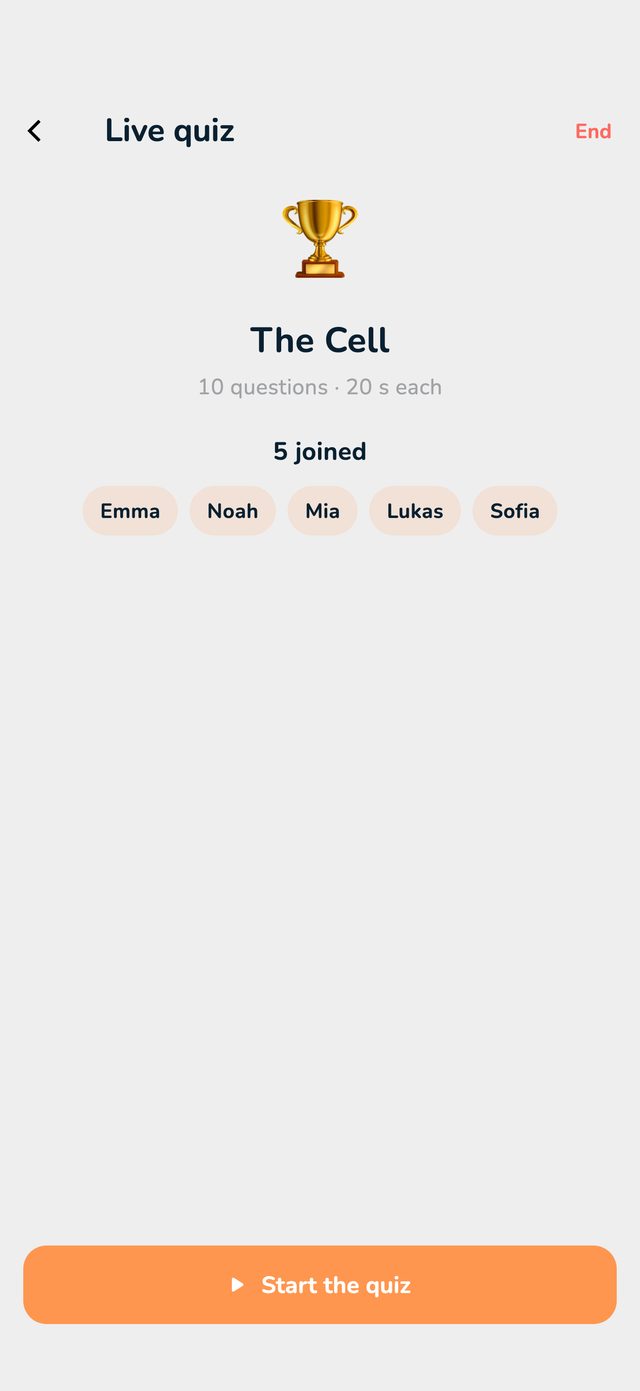
The quiz's waiting screen with the students' names and Start the quiz

Step 3: Question by question

  1. The question runs. At the top you see how many have answered. When the time is up or everyone has answered, it closes by itself. Show the answer reveals it earlier.
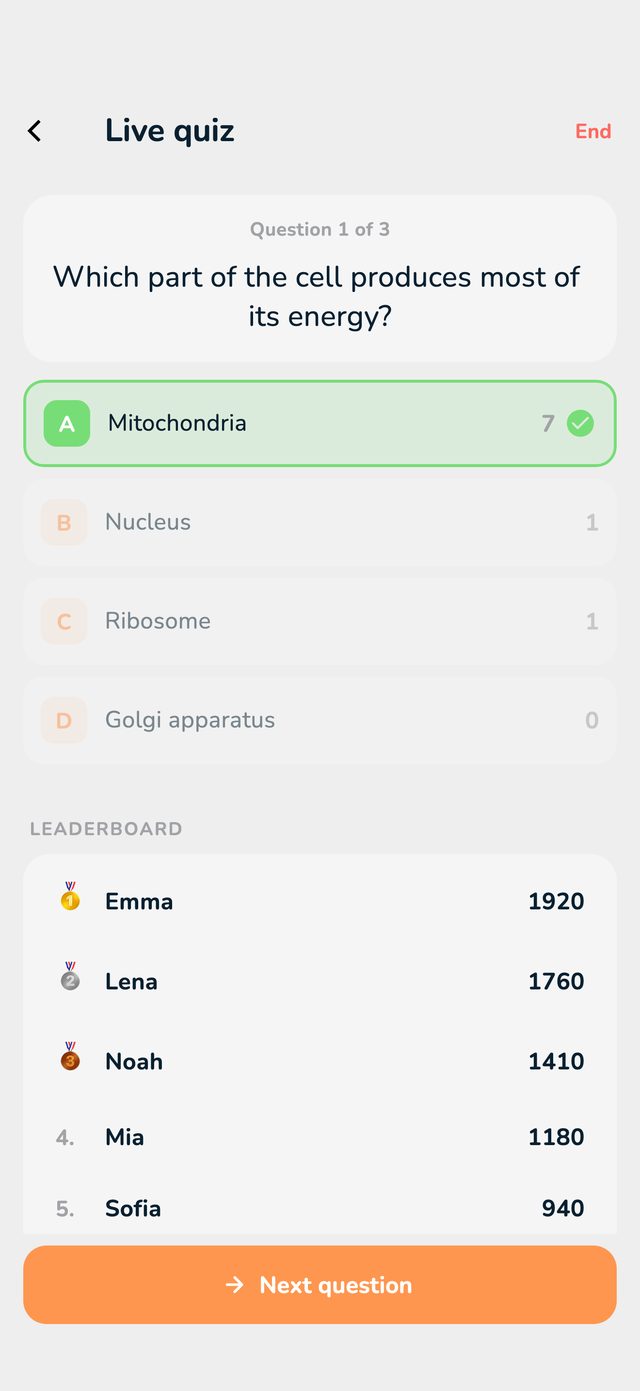
  2. The right answer turns green, and you see how many chose each answer, with the Leaderboard of the top five.
  3. Tap Next question. After the last one: See the results, then End the quiz.
A revealed question with the right answer and the leaderboard
A question on a student's phone

The points

A right answer gives 1000 points when it comes straight away, and down to 500 when it comes at the end of the time. Wrong or too late: 0 points. The students see their place after every question.

The leaderboard the students see shows their account names. The names you gave them yourself are only for you.