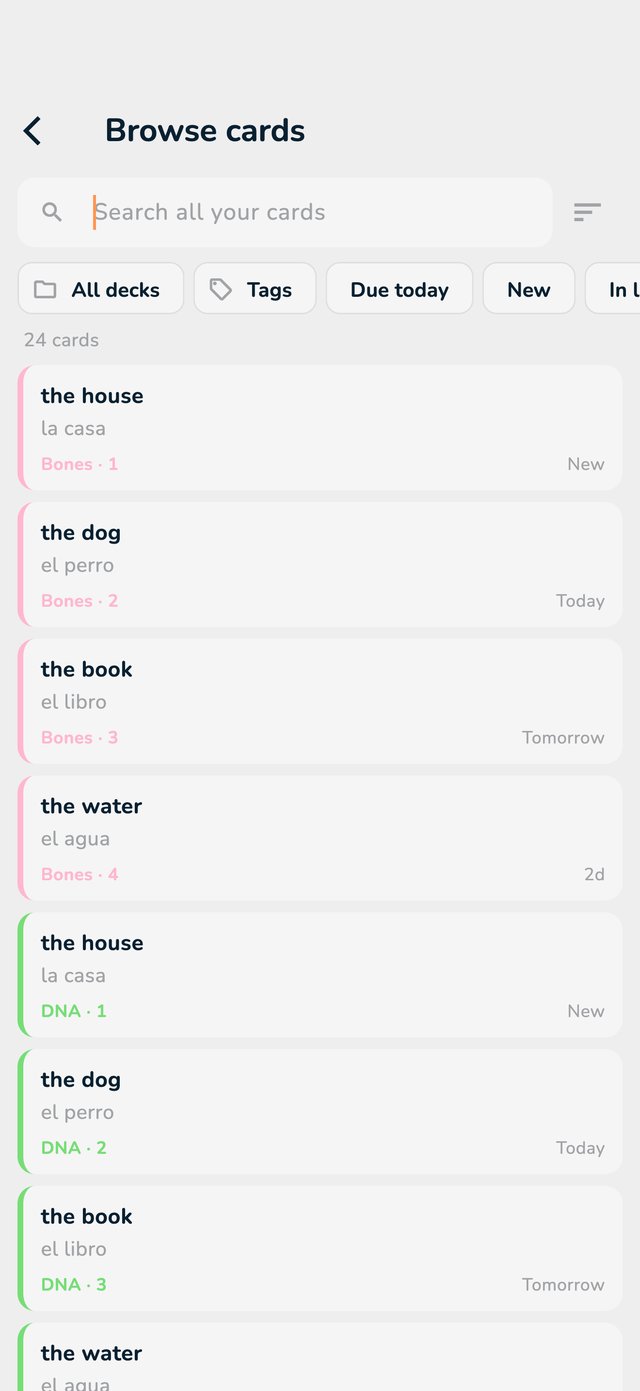
Open Browse cards
- On a phone, open the Folders tab and tap the search icon at the top right (Browse cards).
- On a computer, a tablet in landscape or the web, tap Cards in the bar on the left.
Have many decks? Browse cards shows every card you own in one list, so you can find a card, check how it is doing and fix it, without opening each deck. It is free.
How to read the pictures: the red frame shows what to tap, and its number is the number of the step.
To search the names of your decks and folders, tap the magnifier on the Folders tab. Under Search inside your cards you can look inside the cards too.
Under the search box, pick what to look at:
Just type what you look for: all your words must be in the card. A few extras:
"cell membrane".-nucleus.deck:Biology looks only in that deck. is:due, is:new, is:learning, is:flagged, is:leech and is:archived filter like the buttons.Tap a card to see it with everything the app knows: when it is due, how stable it is, how often you forgot it. Tap Edit in the deck editor to change it. On a wide screen, the list is on the left and the card is on the right: use the arrow keys to move through it.