← All guides for teachers

For your students: join and learn

3 min · Last checked: November 2026

This page describes the steps on your students' side. You can also pass it on to them as it is.

How to read the pictures: the red frame shows what to tap. Its number is the number of the step.

Join the class

  1. Install OutLearn and make an account (or sign in with a student account from the sheet: then these steps don't apply).
  2. Open the teacher's link or scan the QR code with the camera. The app opens on Join a class and shows the class and the teacher.
  3. Tap Ask to join and allow notifications, so sessions and quizzes come through.
  4. Wait until the teacher accepts the request.
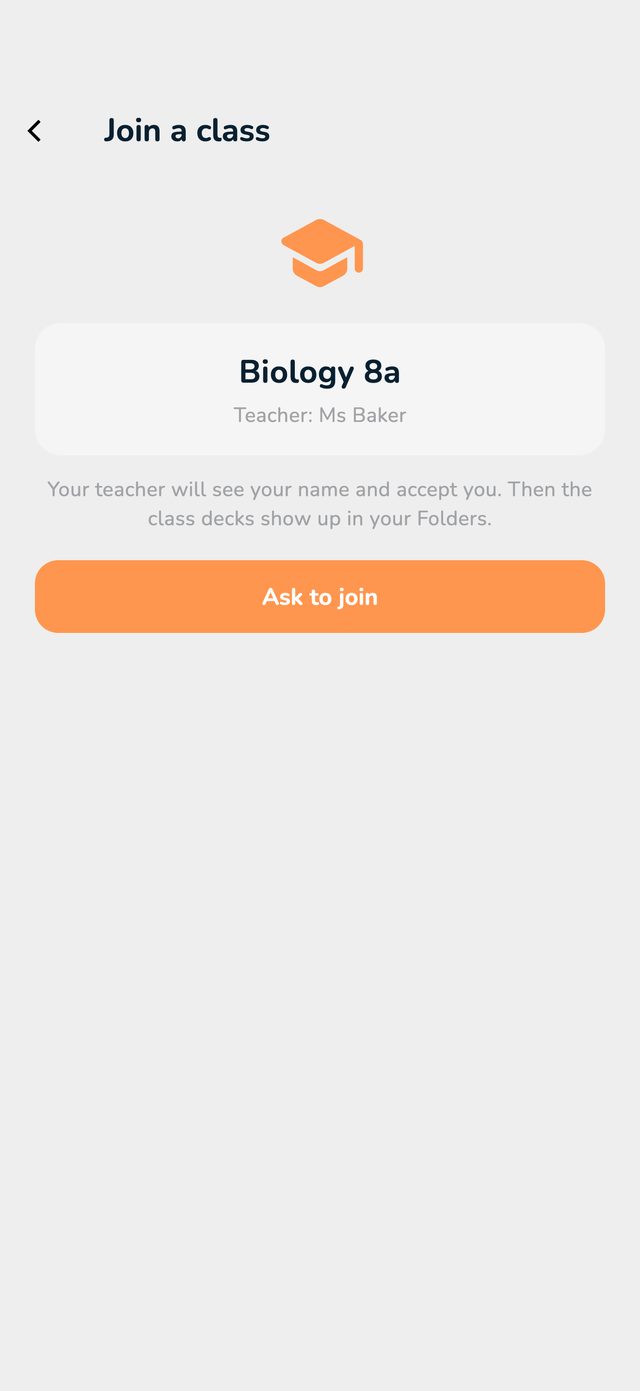
The Join a class screen with the class, the teacher and Ask to join

Where the decks are

  • Under Folders, at the very top in My classes, there's a folder with the class's name. The decks are in it as soon as the teacher has accepted the request.
  • Learning works as with your own decks: Long Term, Binge Learn and Exam Mode.
  • With the pen on a card, you write your own note on it.
  • The folder also says what the teacher sees: your progress, your streak and your study time in these decks.

Leave the class

Under Folders, tap ⋯ on the class's folder, then Leave class. The class's decks go to Recently Deleted.